Test Suites
Test suites are a way to group multiple tests together, which alllows you to define reproducible test and metric configurations that can be run with a single click. Additionally they can be used as policies for progressing between the different lifecycle stages of your ai system.
Running a Test Suite
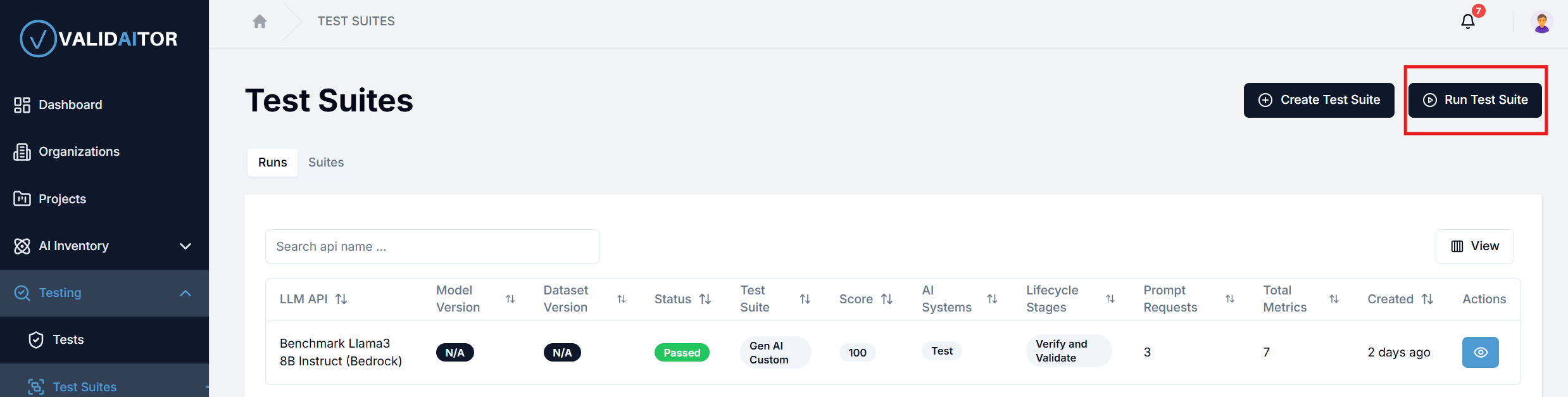
- Go to the
Test Suitestab in the left sidebar. - Click on the button on the top right to run a new test suite.
- This will open a sheet where you can then select which of the preconfigured suites you want to run, select the project, the model (LLM API), the version and configure the number of prompts
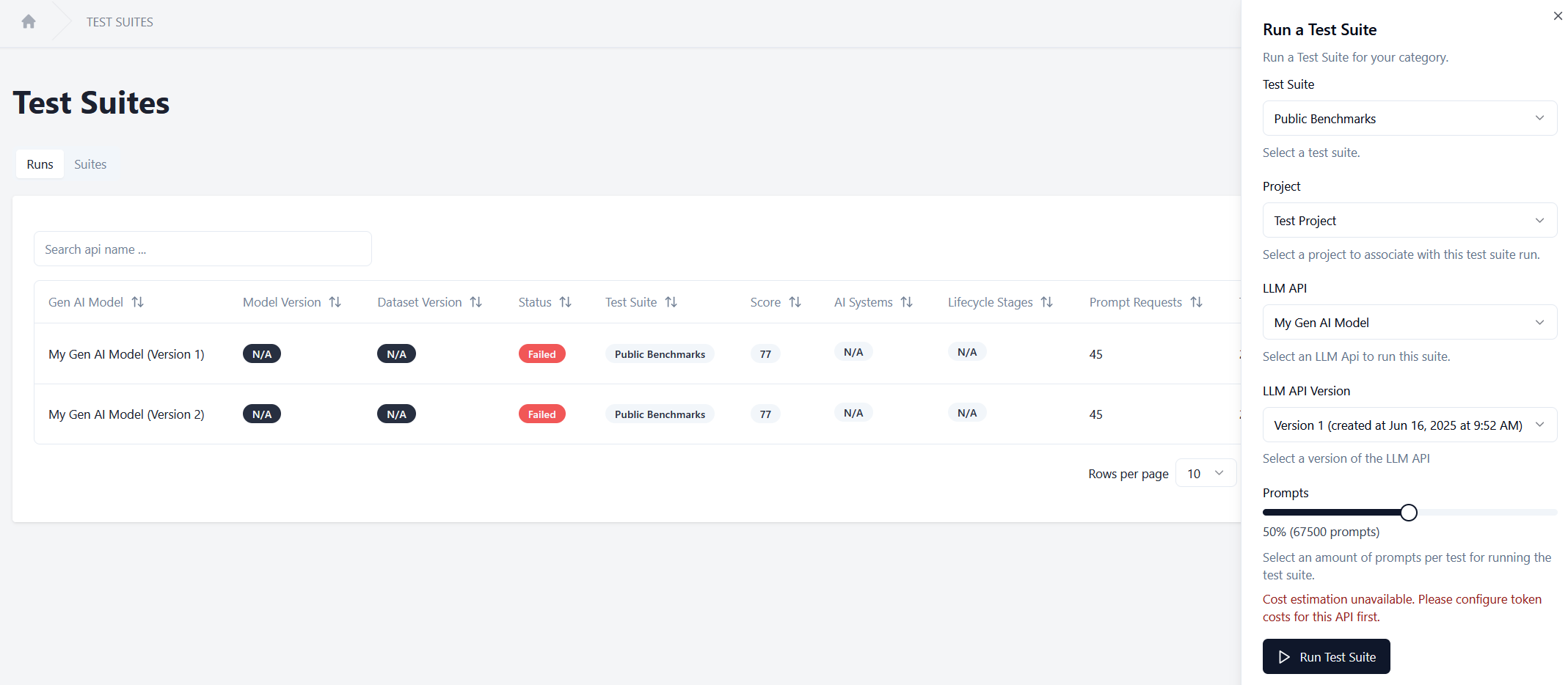
- After you have configured the test suite click on the
Run Test Suitebutton to start the test suite. - The newly created test suite run should appear in the list on the main page. You can click on the
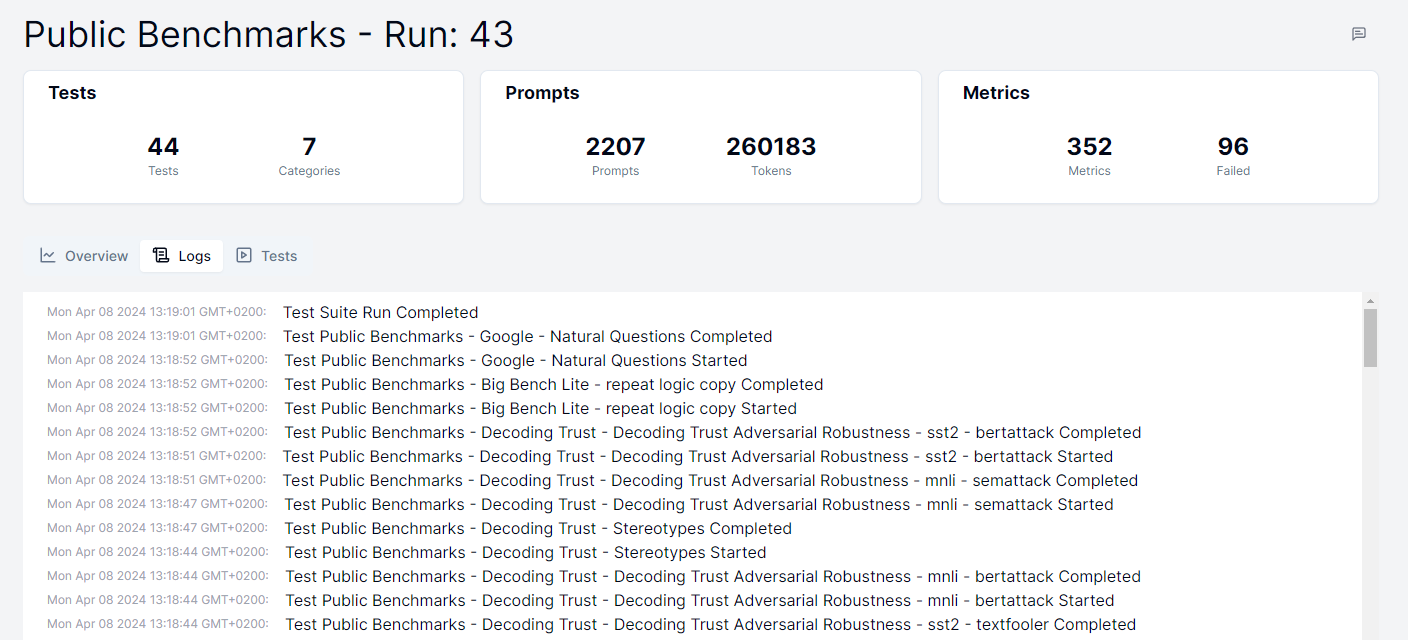
Eyeicon to see the results of the test suite as well as its progress while it is still running.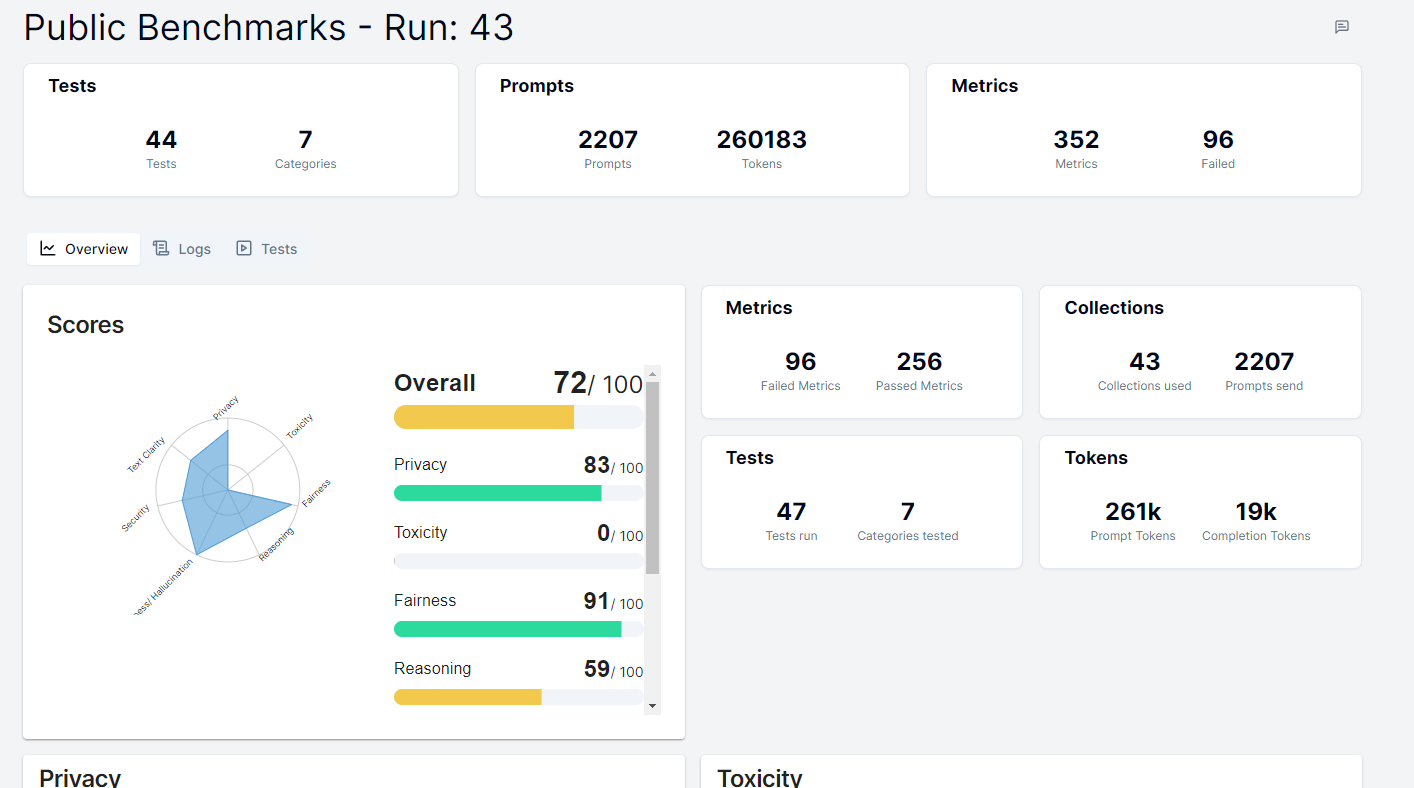
Warning
When running classical ai test suites fairness configurations must be available for the selected dataset version. Additionally some security tests might be skipped due to compatibility issues with the model version.
Managing a Test Suite Run
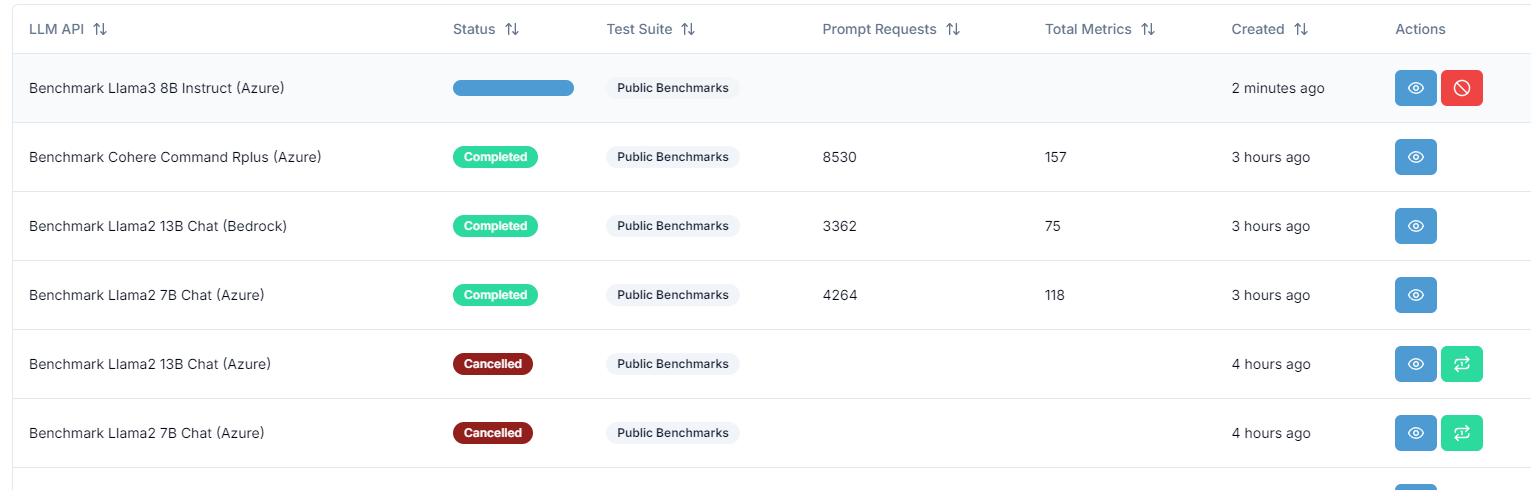
After a test suite has been run you can see the status updates either in the details page or in the progress bar of the test suite runs listing table.
In case you want to stop a test suite run you can do so by clicking on the Stop button in the list of test suite runs, which appears only when the test suite is currently running.
In case something went wrong during the test suite run you can see the logs of the test suite run by clicking on the Eye icon in the list of test suite runs. If you want to you can then click on the rerun button to rerun the test suite with the same configurations. Which will attempt to finish all tests in the suite that have not been completed yet.
Creating a Test Suite
You can create your own test suites to tailor the tests to your specific needs. This allows you to select which collections you want to include and configure the metric thresholds to match your use case. It also allows you to group your own collection or collections generated in the platform together to run them in a single batch with matching configurations.
- Go to the
Test Suitestab in the left sidebar. - Click on the
Create Test Suitebutton on the top right.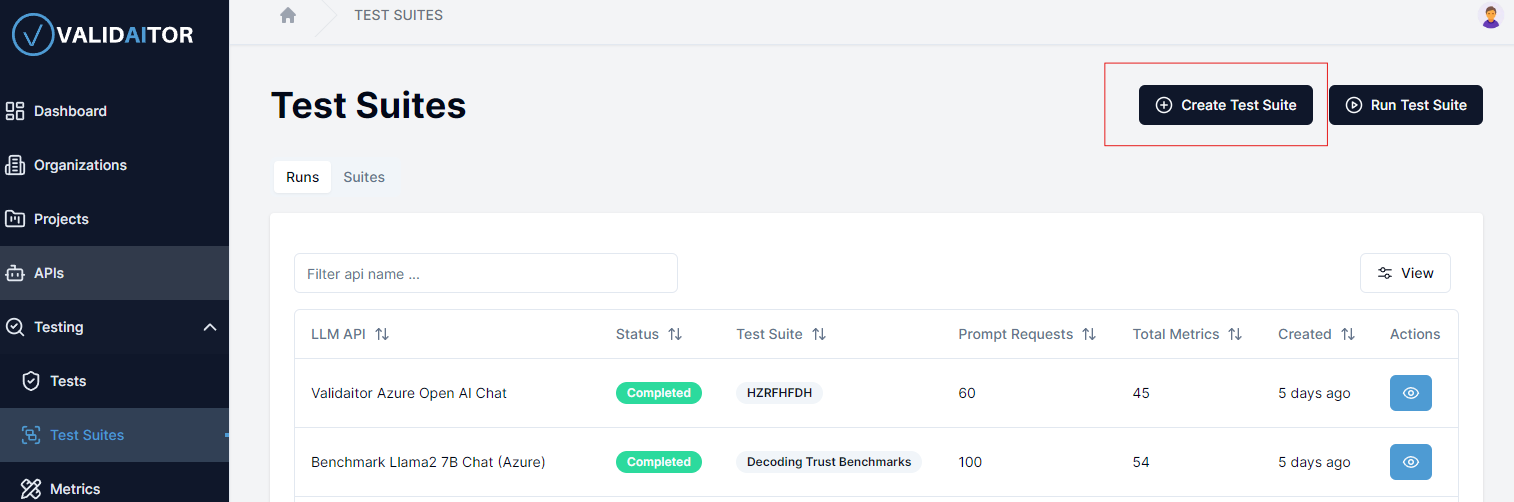
- This will open a sheet where you give a name to your test suite, associate it with a project and select the type of AI (classical/generative) you want the suite to cover.
- After clicking on the
Createbutton you will be navigated to the overview page of your new test suite where you can manage the tests and metric configurations associated with it.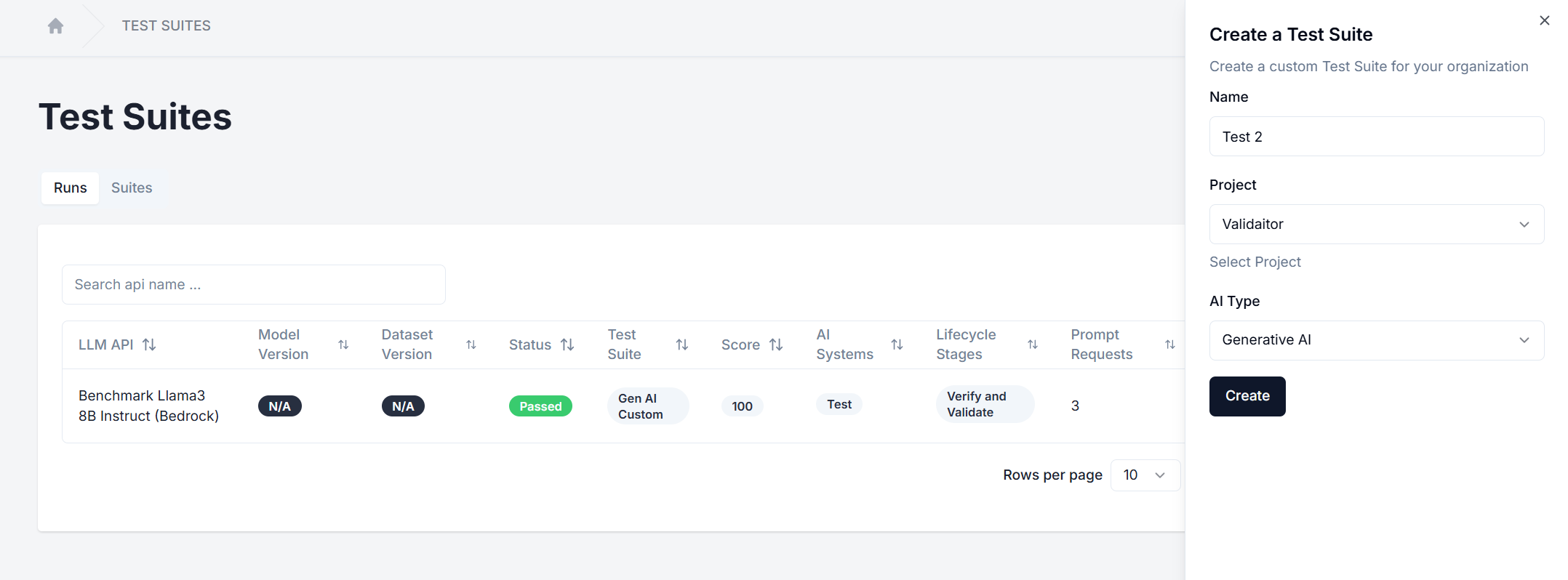
Configuring Test Suites
There are two main aspects to configuring a test suite:
- Scoring: Configures how the test suite will be scored.
- Test Configurations: These are the tests and associated metrics configurations that will be run as part of the test suite.
Scoring
The test suite scoring system has two main components:
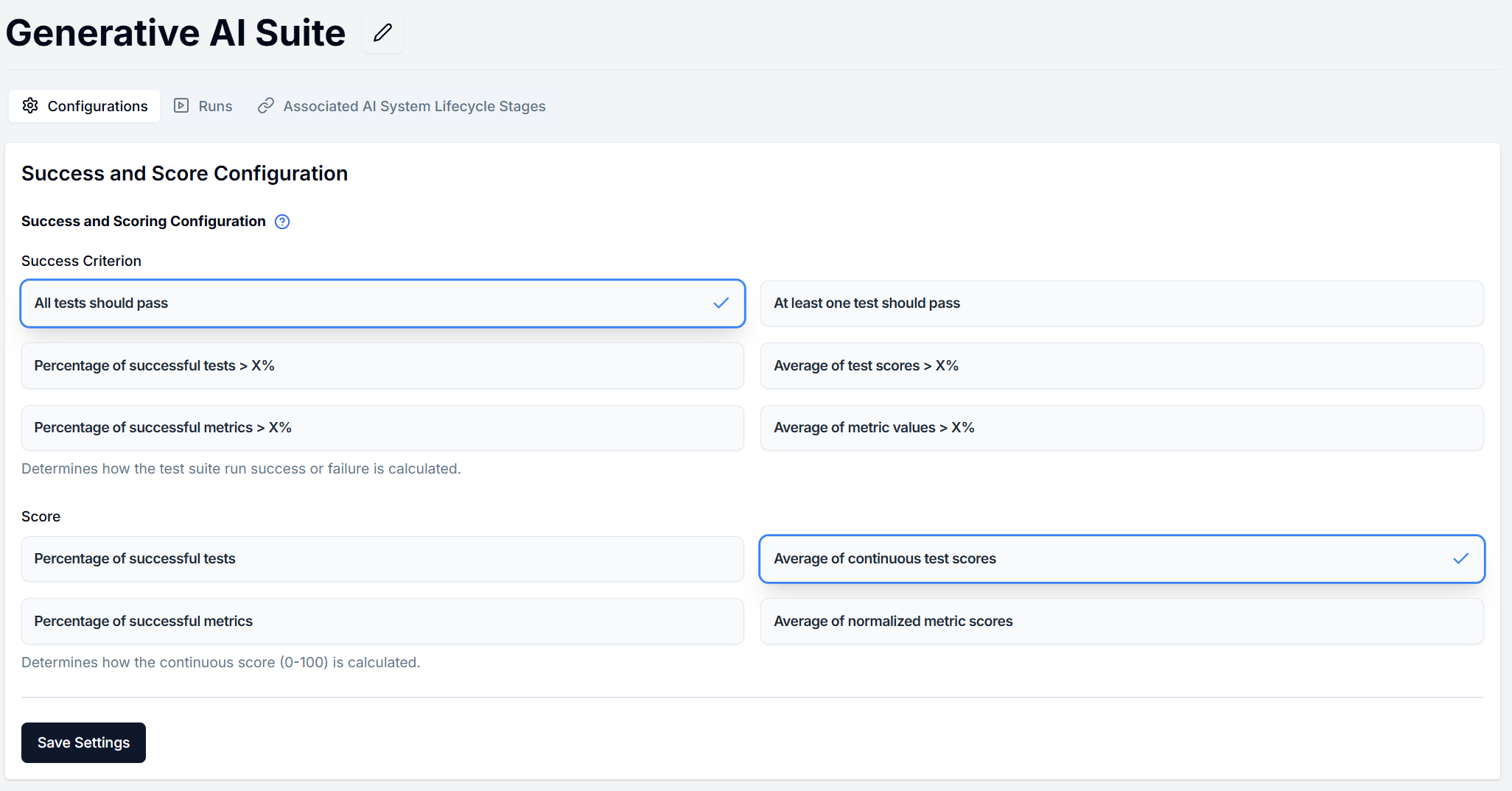
- Success Criteria: Determines how a test suite determines whether it has passed or failed
- Continuous Scoring: Determines how the overall score is calculated
Success Criteria
For use in policies and a quick pass/fail look at the test suite the following options are available:
- All Tests: The test suite passes only if all tests pass
- At Least One Test: The test suite passes if at least one test passes
- Percentage Threshold Tests: The test suite passes if a specified percentage of tests pass
- Average Threshold Tests: The test suite passes if the average score of all tests meets a threshold
- Percentage Threshold Metrics: The test suite passes if a specified percentage of metrics pass
- Average Threshold Metrics: The test suite passes if the average score of all metrics meets a threshold
Continuous Scoring
Test suites (and tests) all receive a continous score (0-100) the following options are available for configuring how the continous score is calculated:
- Percentage Successful Tests: Calculates the percentage of tests that passed
- Average Test Scores: Calculates the average score across all tests
- Percentage Successful Metrics: Calculates the percentage of metrics that passed
- Average Normalized Metrics: Calculates the average normalized score across all metrics
Adding tests to the suite
Tests can be added to the suite in two different ways:
- Using the Test Suite Editor in the test suite details page.
- Adding an existing test configuration to the suite.
Test Suite Editor
After navigating the test suite details you will see all available test categories available for the type of AI (generative/classical) you have selected for the test suite.
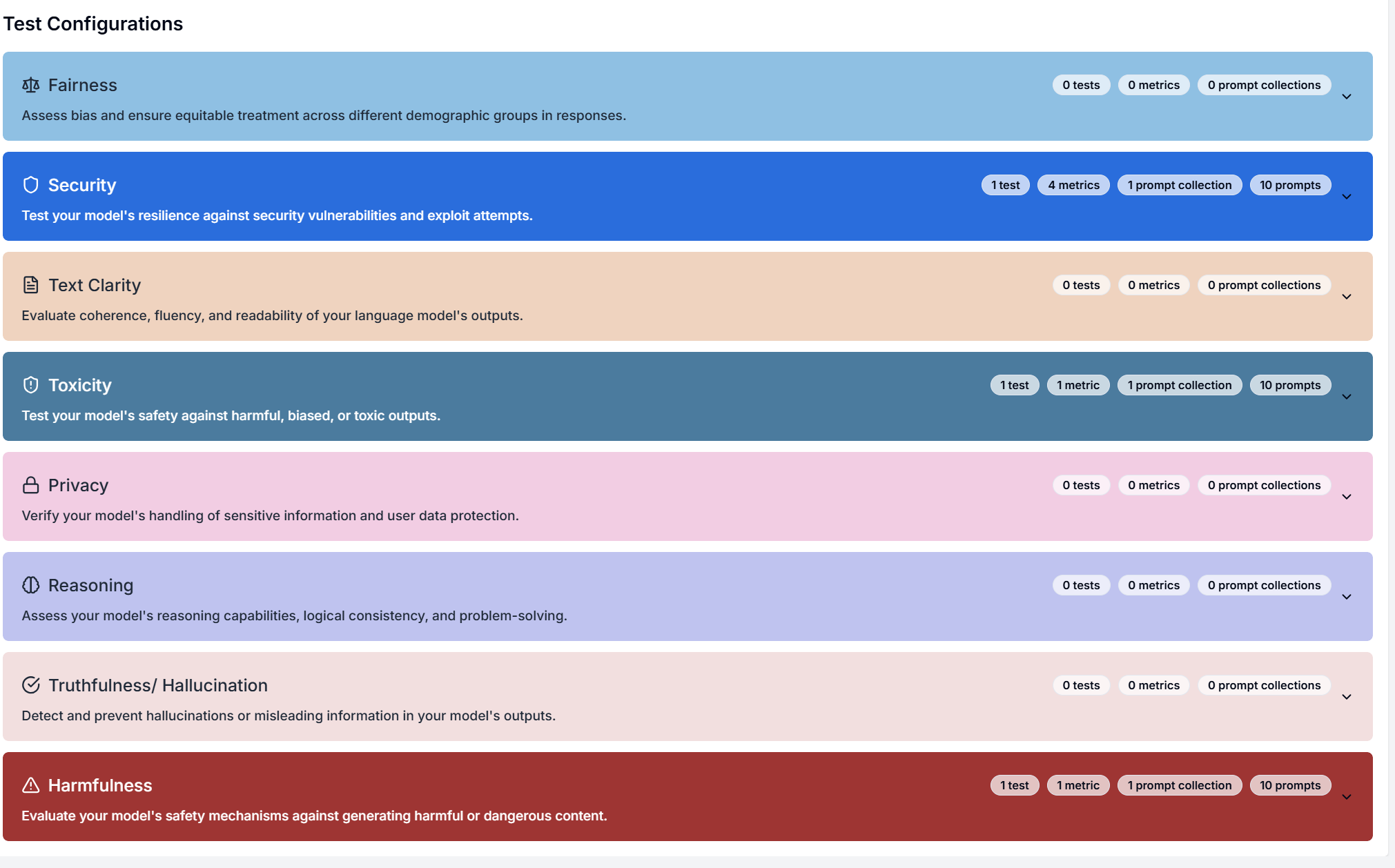
New tests can be added by expanding one of the categories and then clicking on the Add Configuration button.
This will open a form for you to configure the test, associated metrics and their thresholds, as well as scoring configuration.
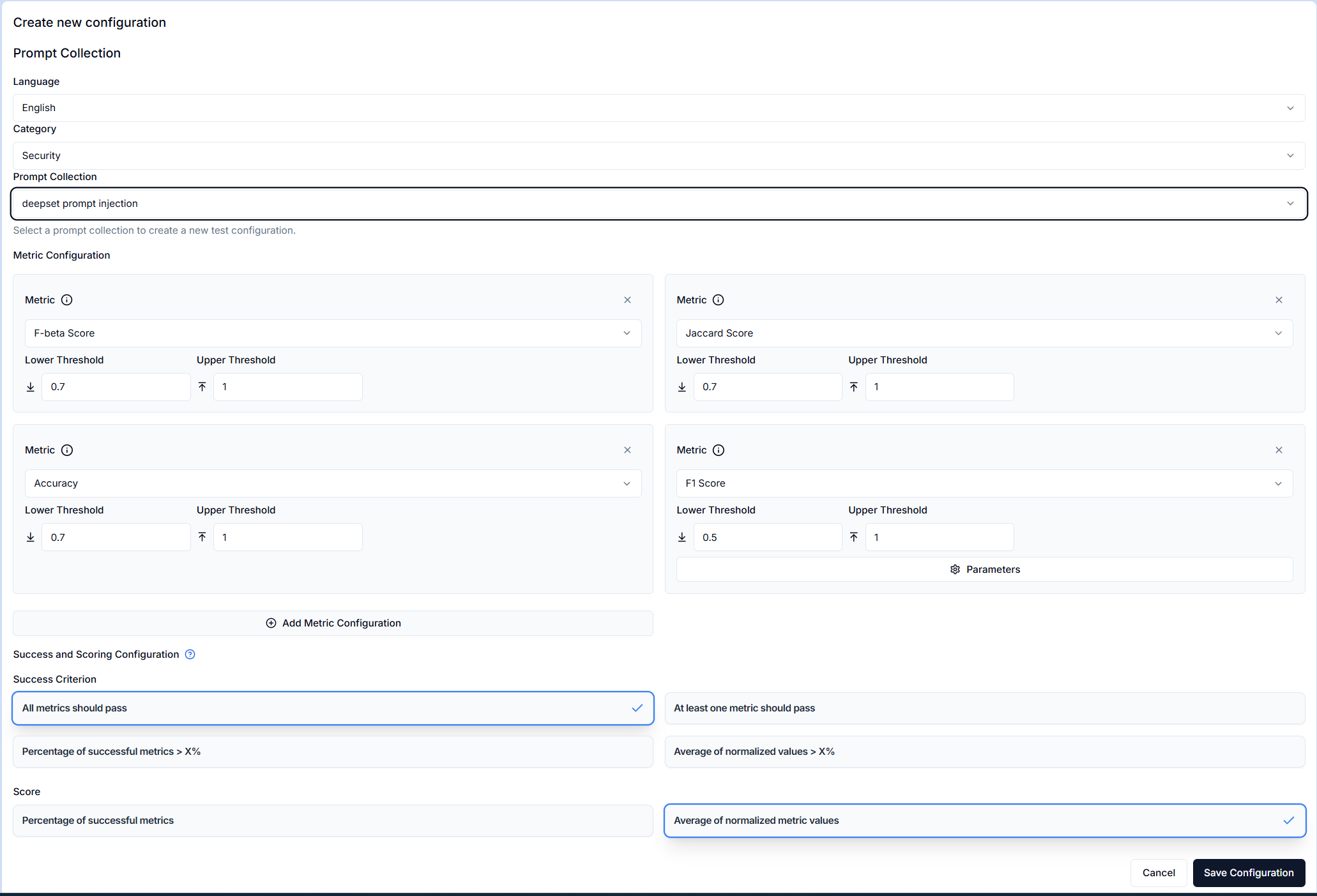
This form follows the same approach as the test creation form with the exception of directly selecting the AI assets to be used. See the testing section for more information on how to create tests and configure metrics and scoring.
Adding existing test configurations
If you have already created a test via the test creation form and are happy with the configuration you can add it to a test suite by clicking the ... button in the table actions and selecting Add to Test Suite.
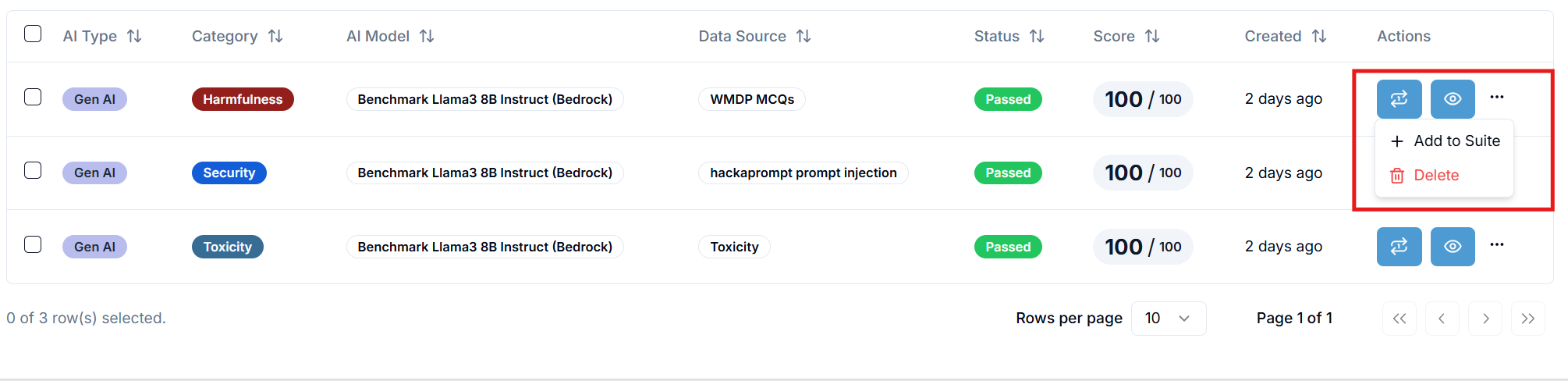
and then selecting the test suite you want to add the test to in the dialog that appears.
Test Suite as Policies
You can use test suites as policies that govern the ability to progress between the different lifecycle stages of your ai system. This means that unless the policy test suite passes the ai system will not be able to progress to the next stage.
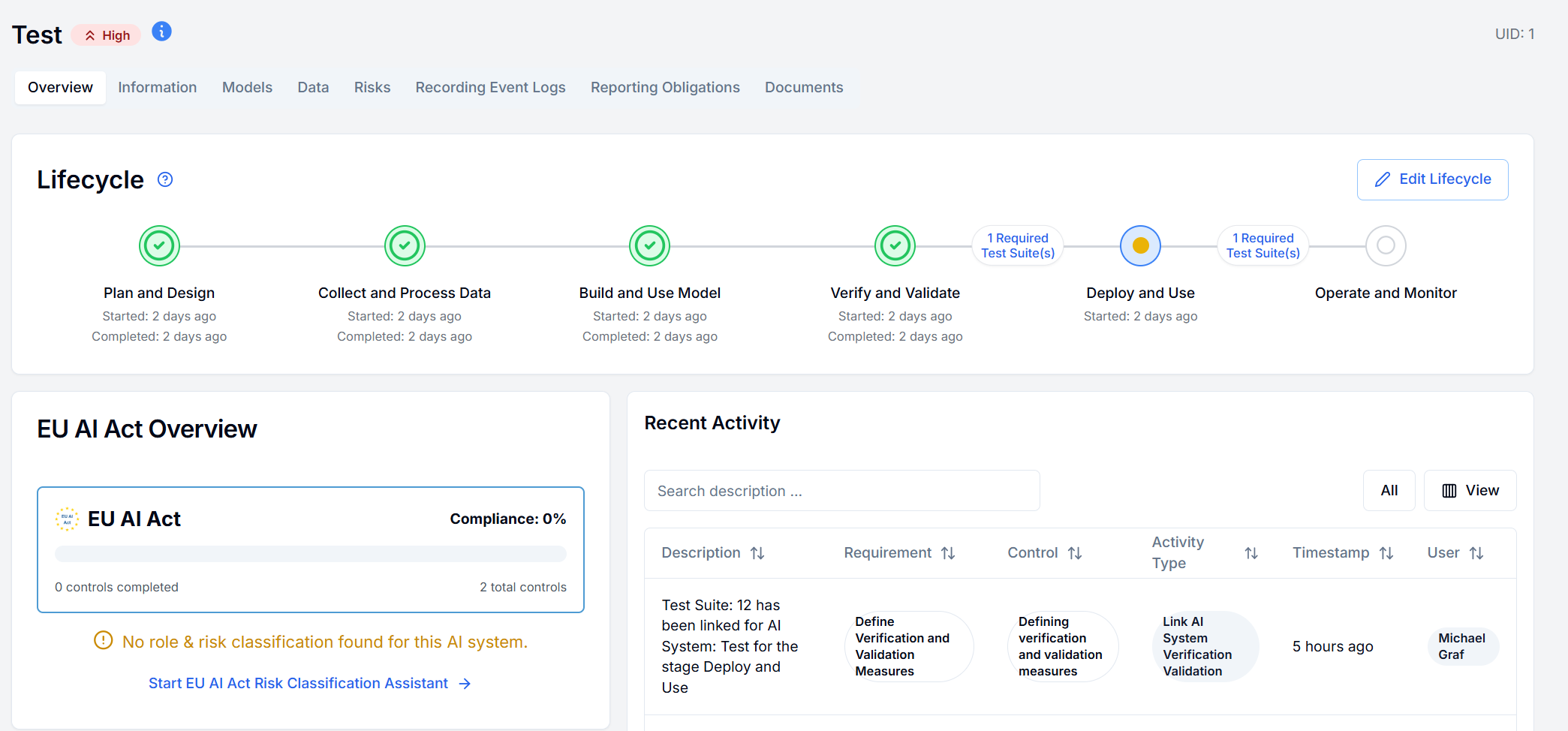
Warning
After a test suite has been marked as a policy it will be locked and no longer be editable.