Questionnaires
This page outlines the structured process for creating questionnaire templates and subsequently generating questionnaires from these templates.
Questionnaire template
The aim of the questionnaire template is to provide the users with a set of questions in order to comply with the regulations and standards.
Step by Step Guide
- Click the "Create Template" button.
- Enter a name and description for the template.
- Click "Create" to proceed to the template home page.
- Once on the template home page, we can perform these steps:
- Add a category

- Add a subcategory and questions within a category
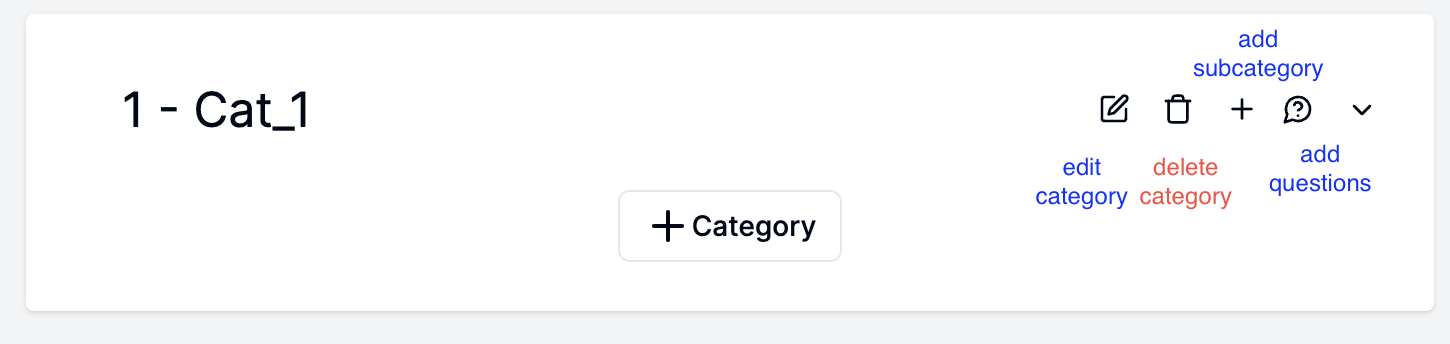
- Add a sub-subcatergory within a subcategory
- Add a question within a subcategory
- Add a question within a subsubcategory
- Once all changes are made, click the "Save" button to publish the template
Adding a question
The plaform supports adding four types of questions. These are:
- Free text question:
These are the text based question, where the answer is provided as free text.
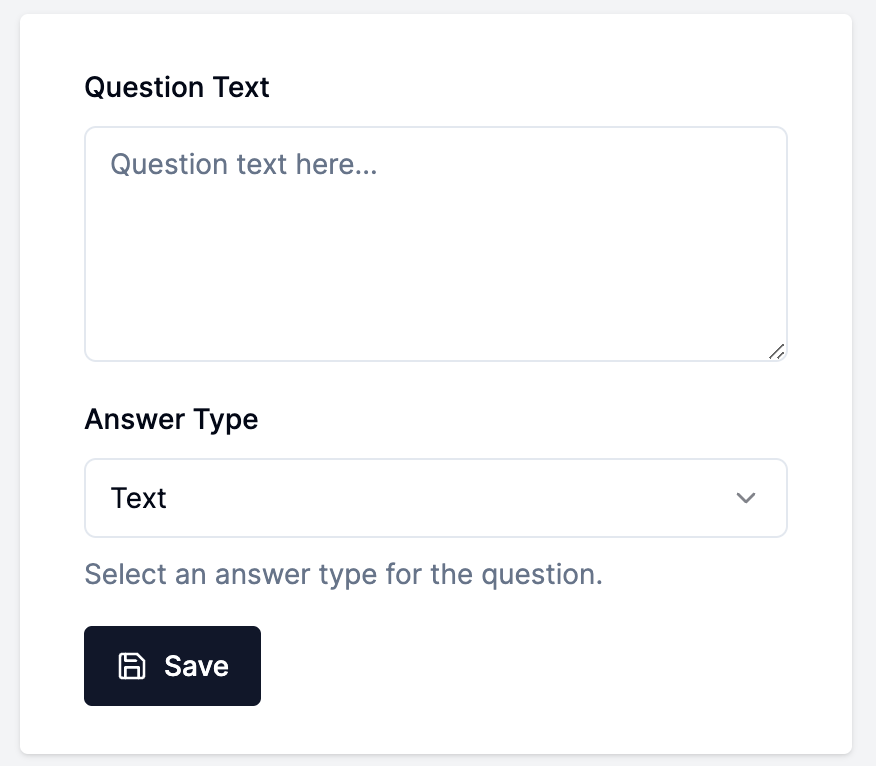
- Single Choice question: These are the multi choice question, where the answer is selected from the options provided.
- Multiple Choice question:
These are again the multi choice question, where the multiple options can be selected
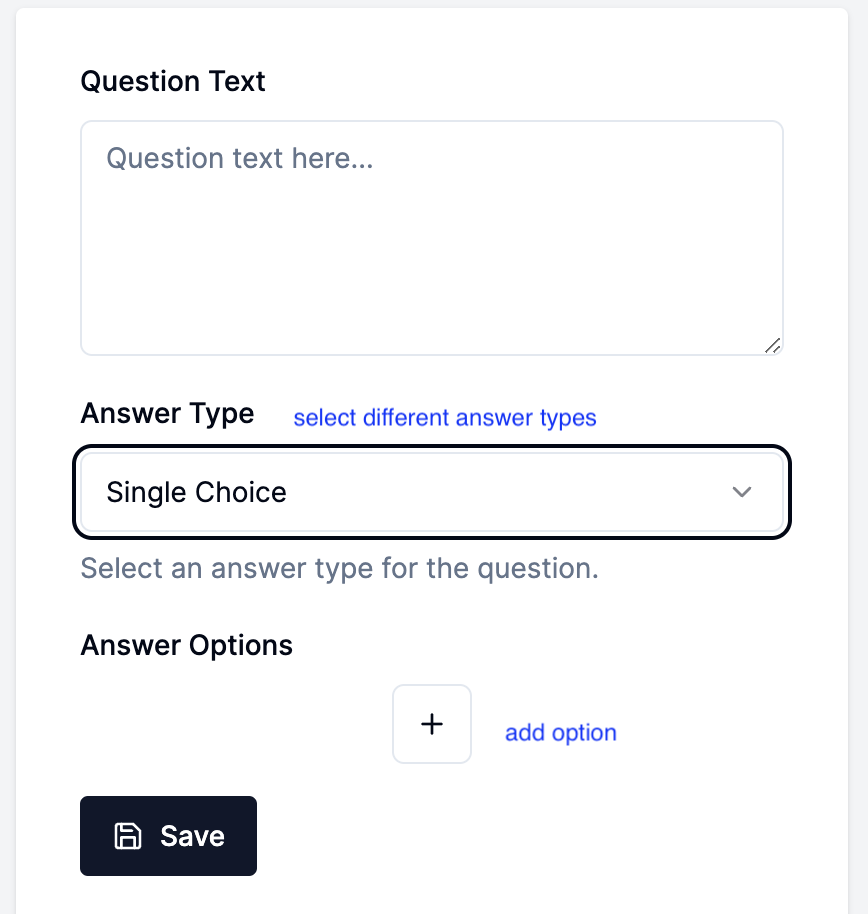
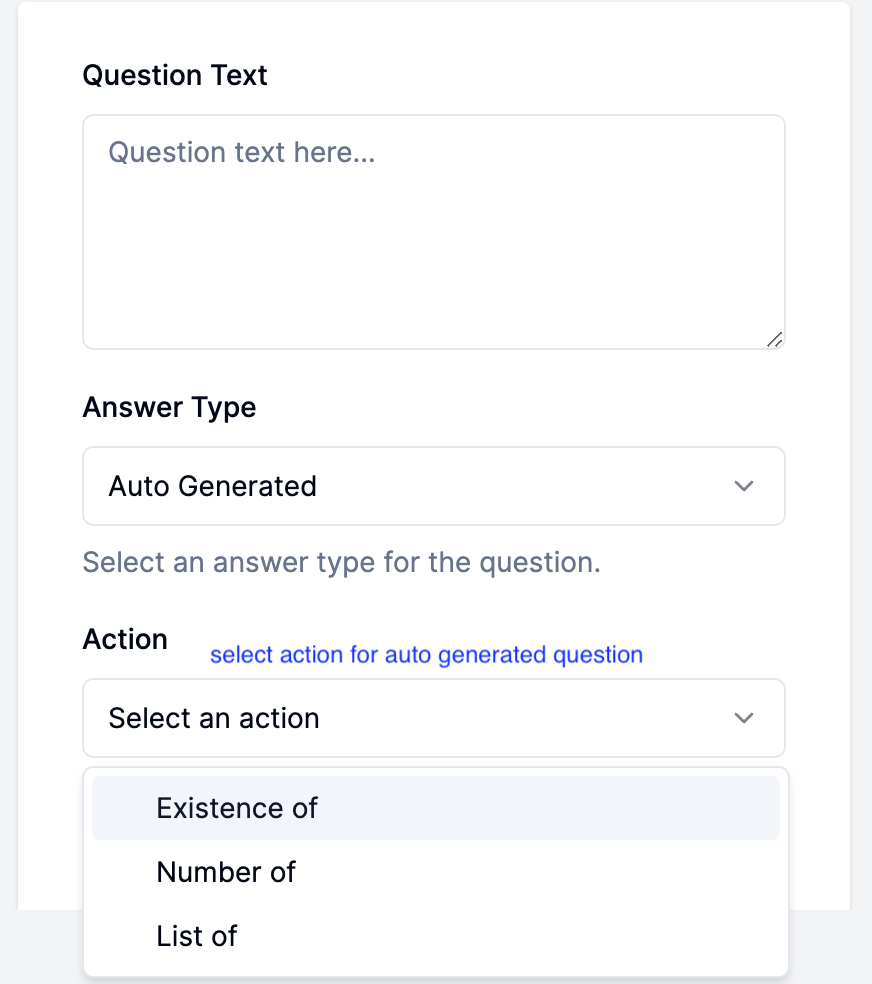
- Auto Generated question:
These are the questions for which the answer is auto generated based on the actions selected. The action select will look for tests/metric and its results for an LLM api while creating the questionnaire from the template.
Questionnaire
Once the questionnaire template is created, you can create questionnaire by selecting a questionnaire template.
Step by Step Guide
- Click the "Start Questionnaire" button.
- Enter a name for the questionnaire.
- Select a project, LLM API and a questionnaire template.
- Click "Create" to finish the process.
- To complete the questionnaire, locate it in the listing table, then click on the action/eye button and answer all the questions.
Answering a question
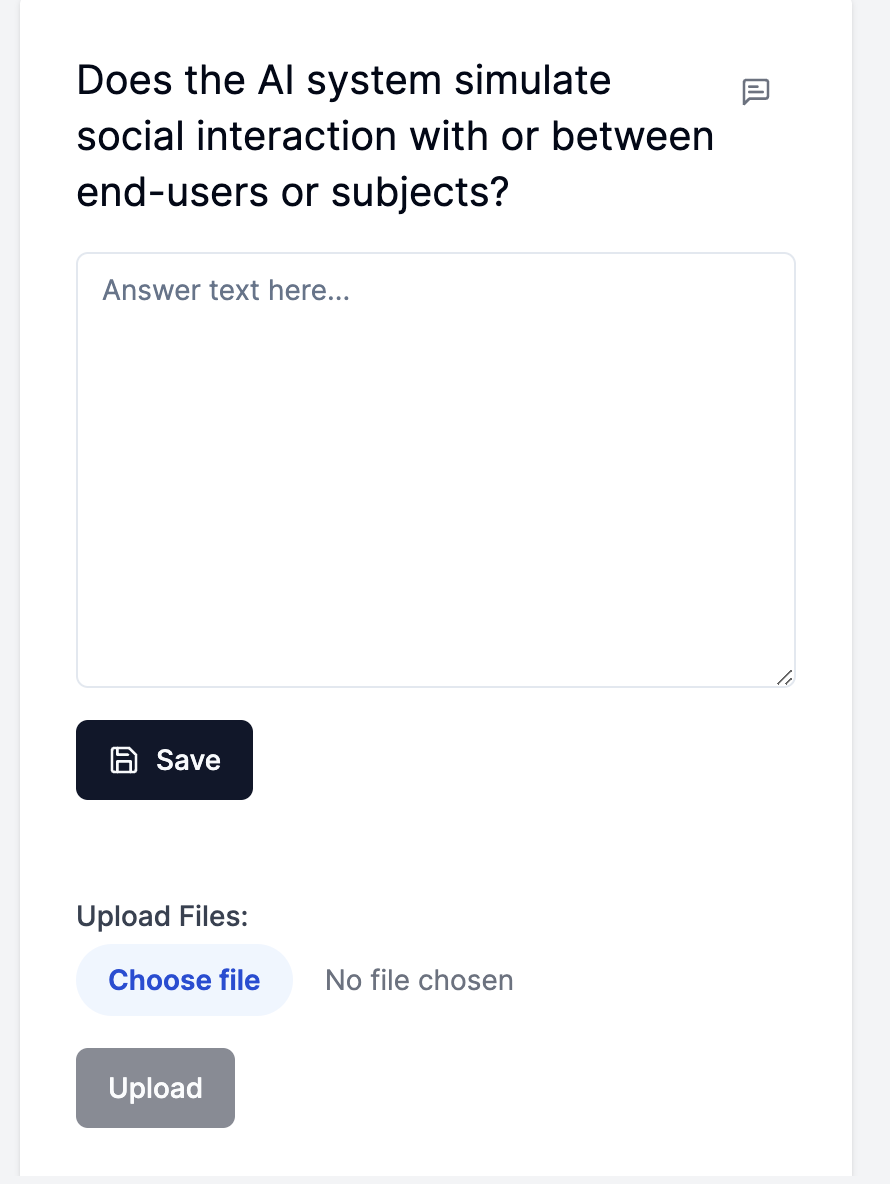
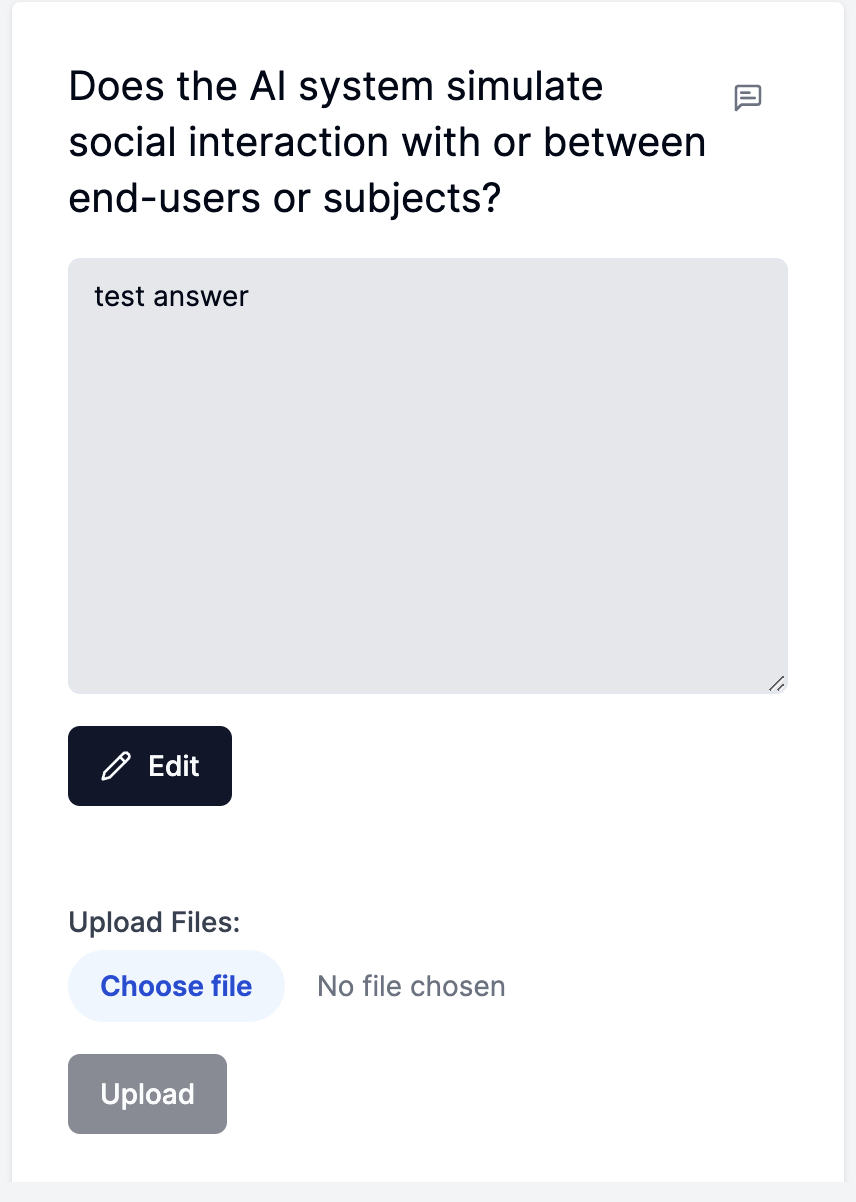
You can add the answer by clicking on the particular question and add the answer in the text field or select the appropriate options based on the type of the question. You can save the anwer by clicking the save button. You can also edit our answer if the questionnaire is not submitted for the review.