How the Documents Tab Works
The Documents tab in Validaitor provides a centralized location for managing and creating AI governance documents. Depending on your organization’s activities, you may start with an empty view or have access to various document templates that Validaitor provides.
Initial View
If no documents have been created or uploaded yet, you will see an empty page with zero documents.
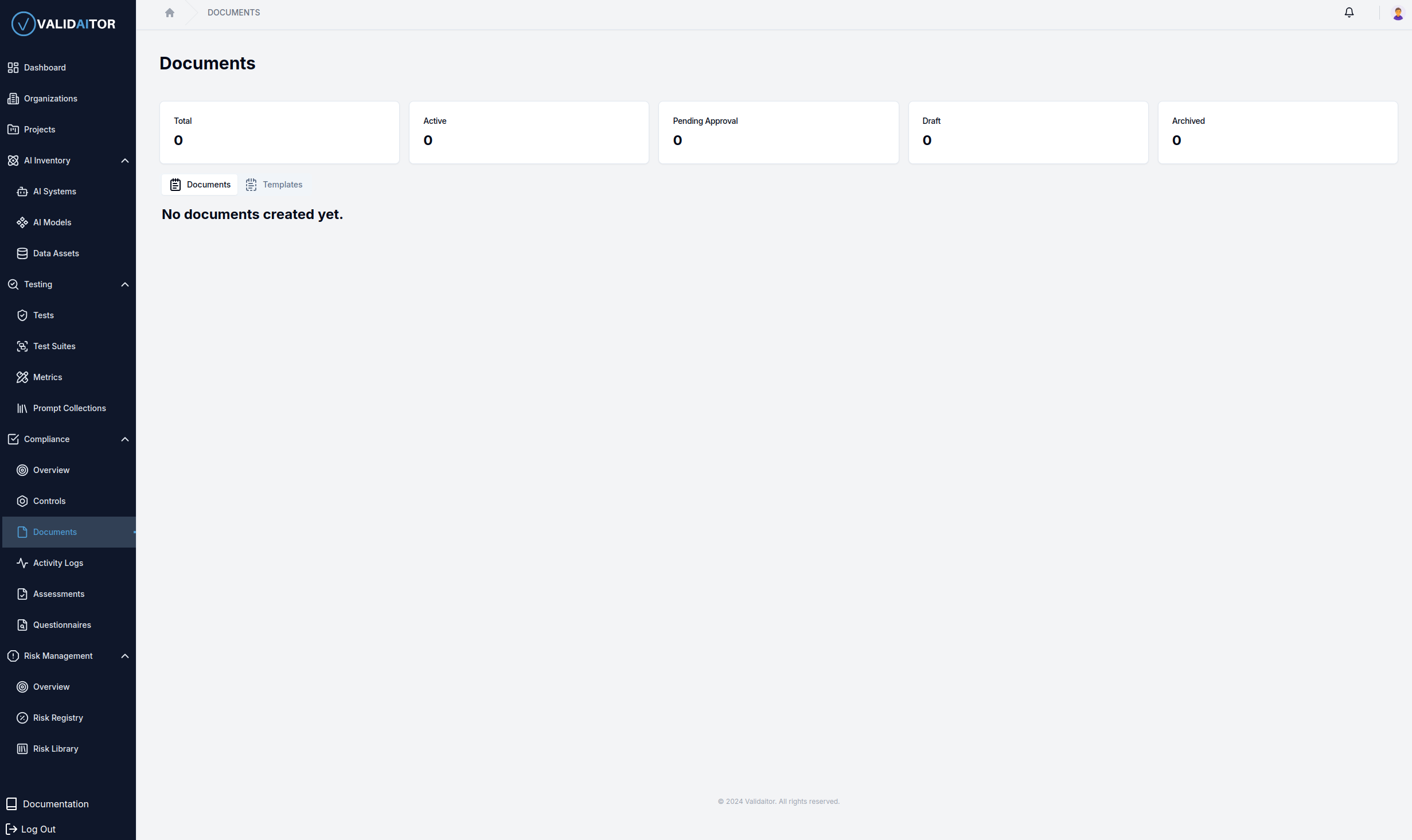
- Total: Shows the total number of documents.
- Active: Shows documents currently in use.
- Pending Approval: Shows documents that have been submitted and are awaiting approval.
- Draft: Shows documents still in draft form.
- Archived: Shows archived documents that are no longer in active use.
From this page, you can switch between the Documents and Templates tabs located beneath the Total card.
Templates Page
If you select the Templates tab, you’ll see a variety of document templates that Validaitor provides.
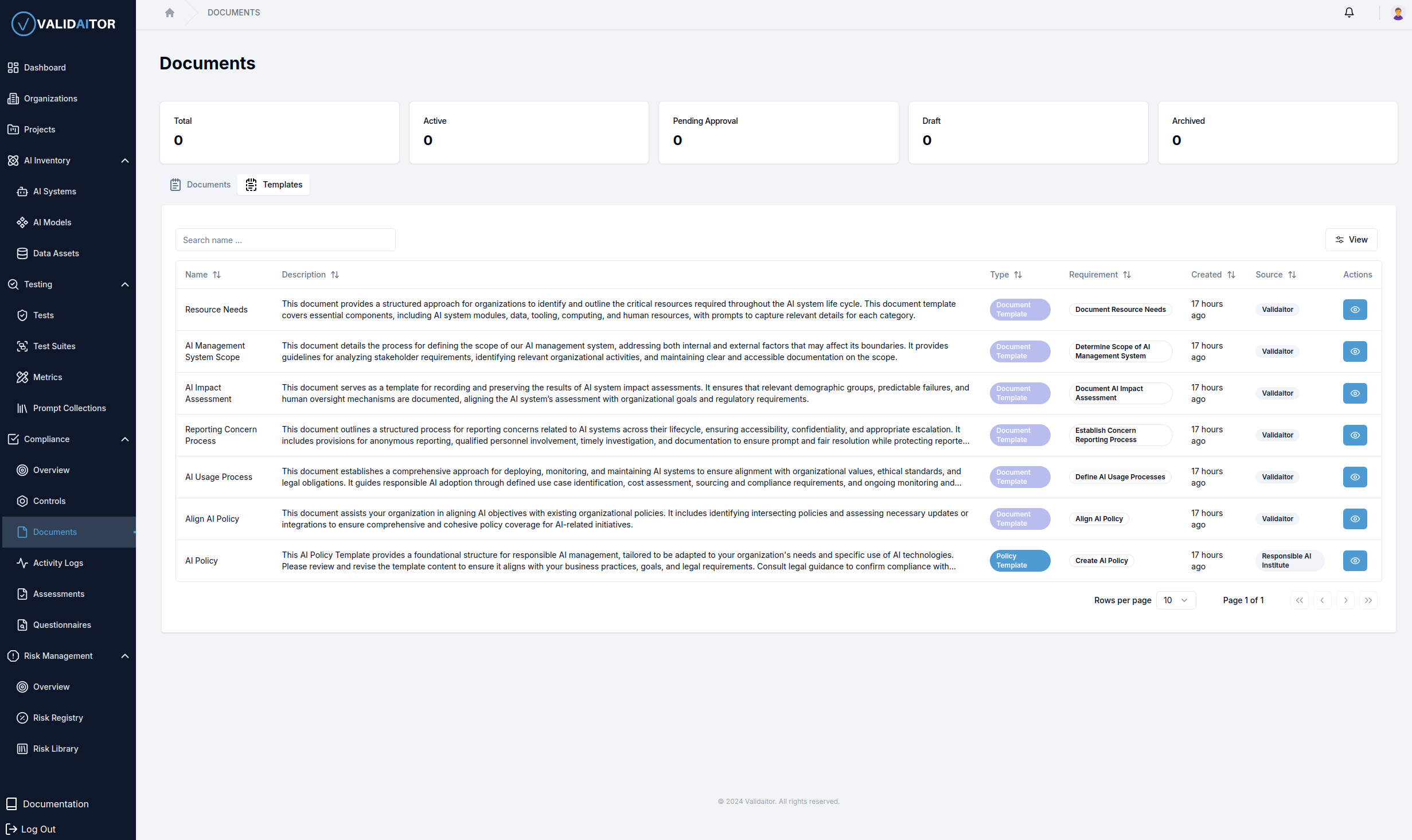
- Each row represents a different template.
- Name and Description: Provide an overview of the template’s purpose.
- Type: Indicates whether it’s a Policy Template, Document Template, Uploaded Document, etc.
- Requirement: Displays related requirements. Clicking the requirement name takes you directly to that requirement’s details.
- Source: Shows the template’s origin.
- Actions (Eye Icon): Clicking the eye icon previews the template in detail.
Previewing a Template
When you click the eye icon on a template, you’ll be taken to a detailed view of that template.
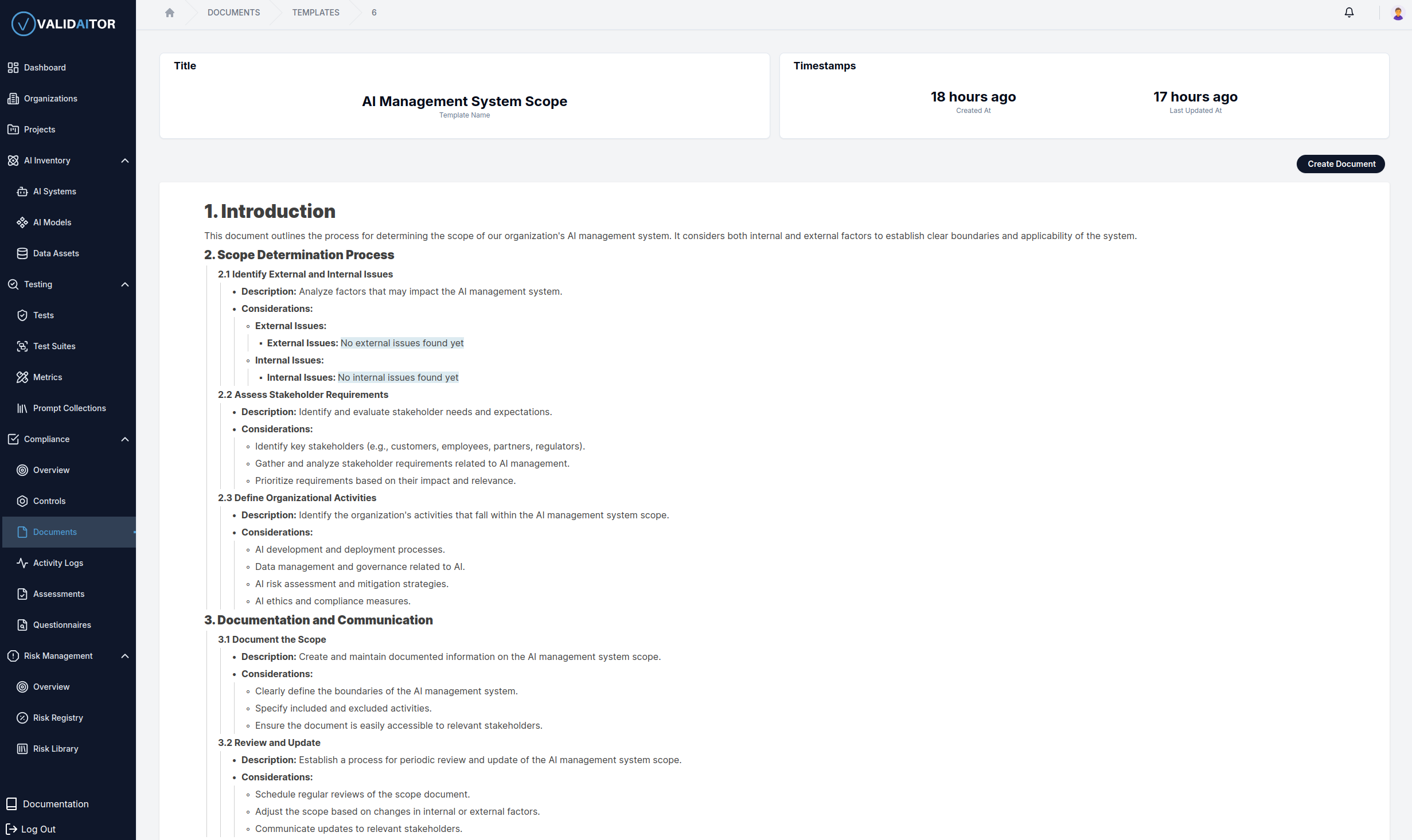
- Blue Background Text: Highlights fields populated by the information you’ve provided within the platform.
- From here, you can select Create Document (top-right button) to instantiate a new document based on the template.
Creating and Managing a Document
Clicking Create Document opens the document in an editable state where you can manage it.
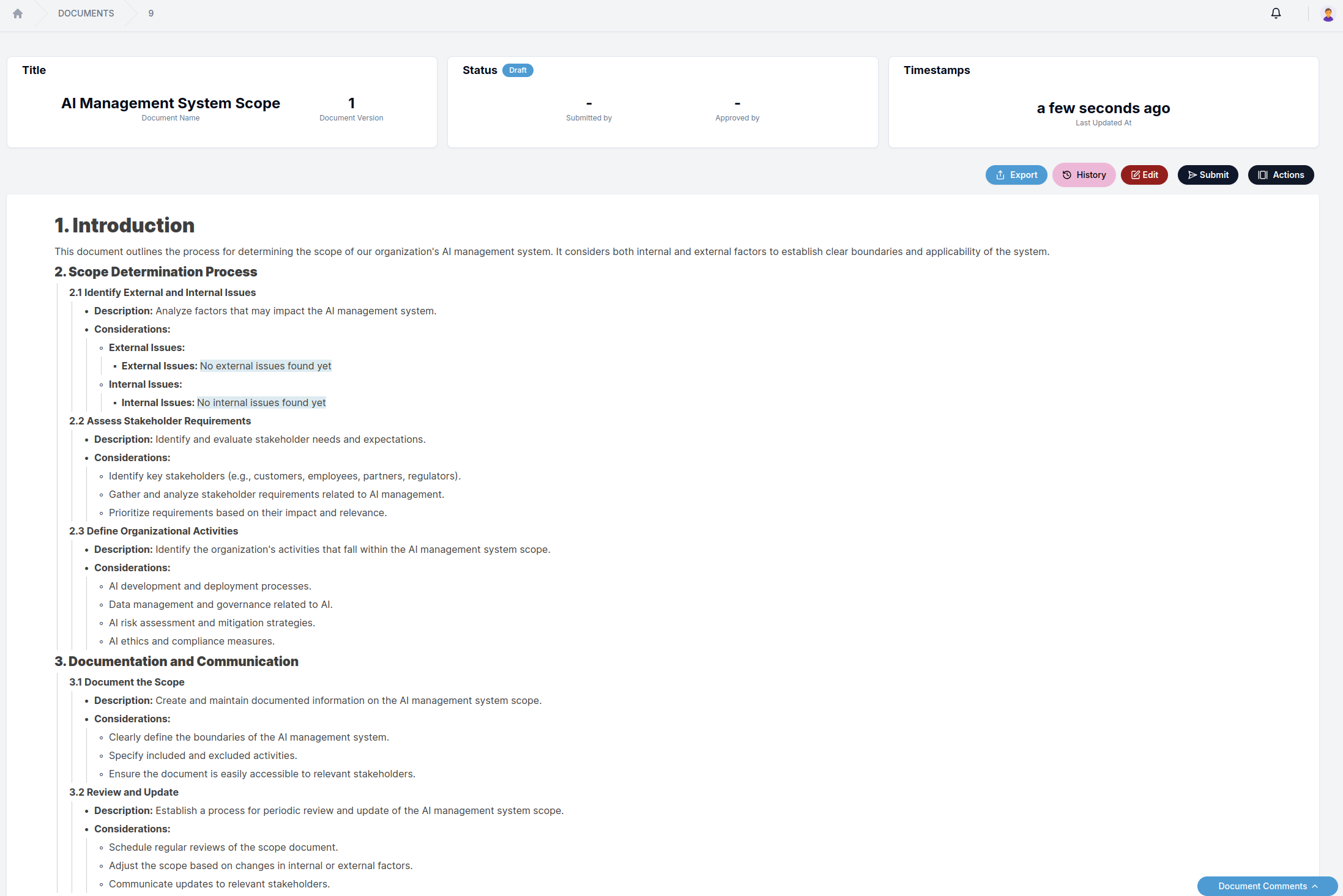
- Actions Button (Top Right): Depending on the document’s status, different actions will be available:
- Export: Download or save the document.
- History: Review other documents created for the same requirement.
- Edit: Make modifications to the document.
- Submit: Send the document for approval.
- Approve / Reject: If you have the necessary permissions and the document is under an approval workflow.
- Save: Save your changes without submitting for approval.
By following these steps and utilizing both the templates and document views, you can efficiently create, manage, review, and maintain governance documents within Validaitor.
Using Placeholders
While editing documents, you can simplify your workflow by using placeholders. Placeholders allow you to seamlessly incorporate information you’ve already entered into the platform, so you don’t need to retype or search for the same data. There are two types of placeholders:
Inline Placeholders
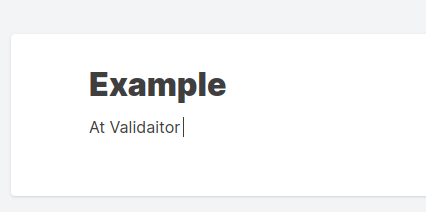
These can be inserted directly into the flow of your text. For example, you can insert an organization’s name right within a sentence, helping maintain a smooth narrative.
Place your cursor where you want the placeholder to appear and type "{". A dropdown will appear, allowing you to select from available data fields that you’ve previously entered into the platform.
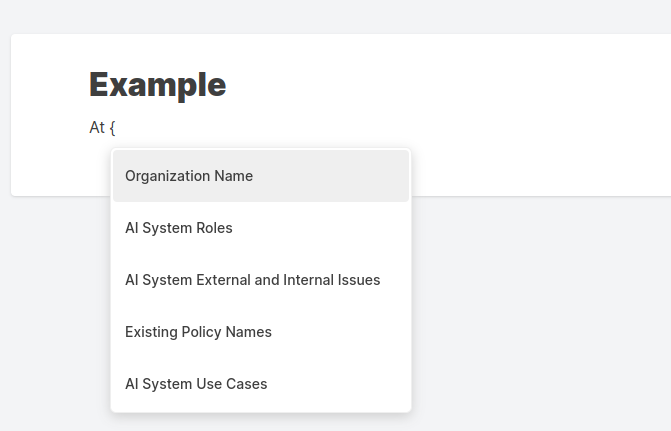
After selecting the organization name, it will appear at the cursor’s position:
Section Placeholders
These are added as separate blocks or bullet points. They stand apart from regular text, making them suitable for more substantial content, such as lists of requirements or sets of defined terms.
To insert a section placeholder, use the formatting toolbar’s dropdown (you can type "/") and select "Insert Data Placeholder" at the bottom.
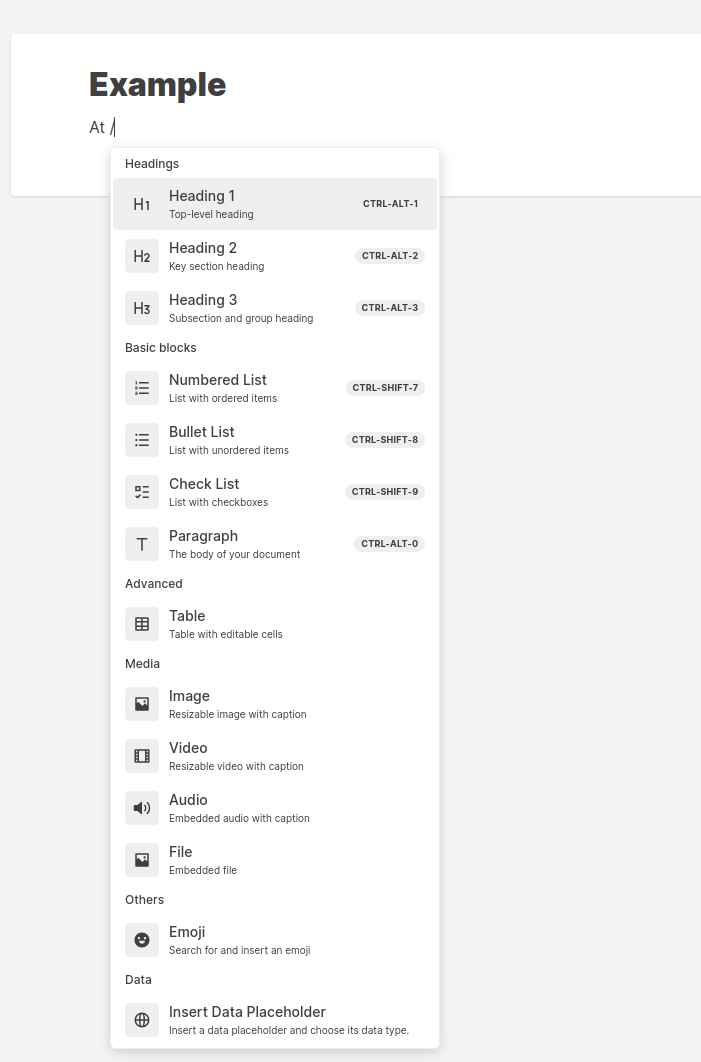
This opens a new menu where you can choose from various predefined data sets you’ve input into Validaitor.
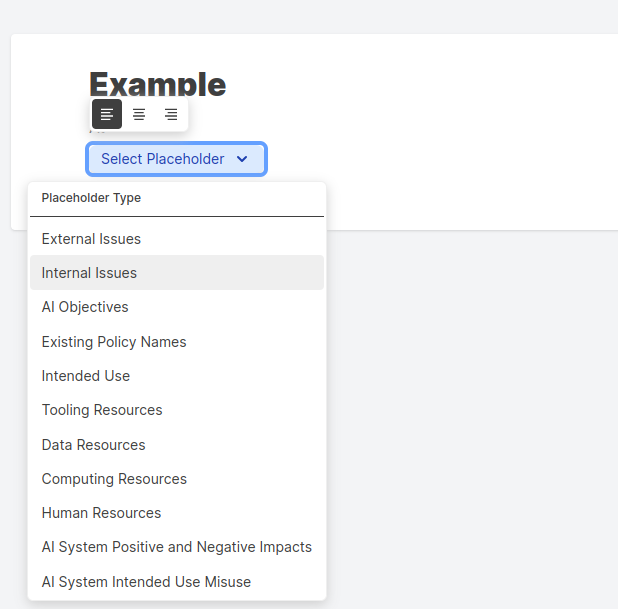
Once inserted, these placeholders form their own list items or blocks.
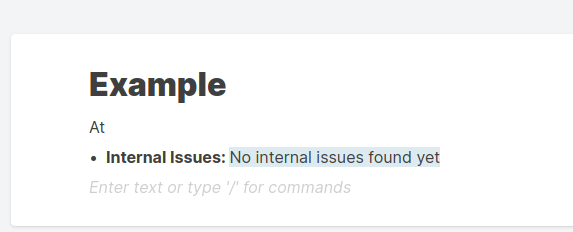
The placeholder content appears one line below the cursor’s position since it’s inserted as a list.
By using inline and section placeholders, you ensure that your documents remain consistent, accurate, and easy to update. As your platform inputs change, all placeholders will automatically reflect the most current data, saving you time and reducing the risk of errors.